Le VPN is now on Vega OS: the newest Fire TV Sticks get their VPN app
The two newest Fire TV Sticks could not run a VPN. Not ours, not anyone’s: Amazon’s Vega OS, the Linux-based system that replaced Android on the Fire TV Stick 4K Select and the 2026 Fire TV Stick HD, shipped without VPN support of any kind, and no app built for the old Fire OS will even install on it. That gap is now closed for Le VPN customers. The Le VPN app for Vega OS is live in the Amazon Appstore, in the same listing as our Fire OS app. Search for Le VPN on the stick, install, sign in, press Connect, and every app on the TV goes through the tunnel.
What happened to VPN apps on the new Fire TV Sticks?
Amazon introduced Vega OS on September 30, 2025, with the Fire TV Stick 4K Select as its first device. Unlike Fire OS, which is built on Android, Vega OS is built on Linux, and the two are incompatible at the app level: an Android APK does not run on Vega, and the usual APK sideloading no longer works, so every app has to be rebuilt for the new platform and delivered through the Amazon Appstore. In April 2026 Amazon confirmed that all future Fire TV Stick models will run Vega OS, and the second-generation Fire TV Stick HD, released that same month at $34.99, became the second device on the list.
For VPN users the switch was more than an inconvenience. Vega OS launched with no VPN support at all: the system simply had no way for an app to open a tunnel. Amazon added that capability in an update rolled out at the end of November 2025, and when coverage of the update appeared on December 1, exactly two VPN apps existed for the platform. Everyone else, including us, had to build one. A Fire TV Stick on Vega OS can only run apps written for Vega OS, so a VPN for the new sticks has to be a new app, not a port.
Ours is that new app. It went live in the Amazon Appstore on October 1, 2026, and it needs Vega OS 1.2 or later.
What does the Le VPN app for Vega OS do?
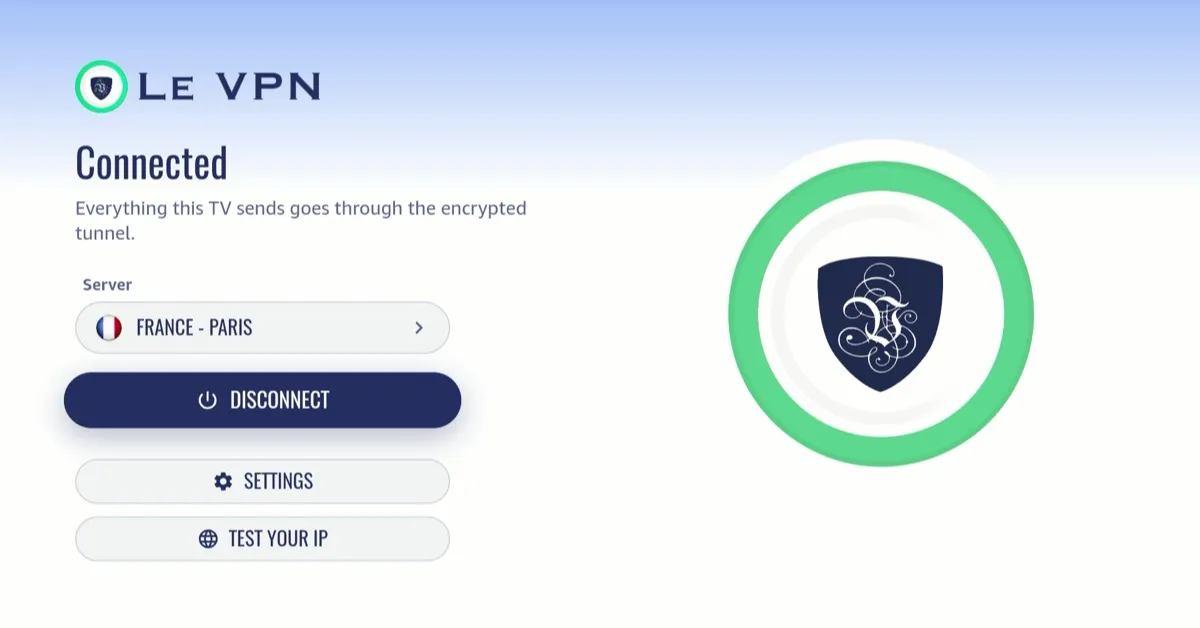
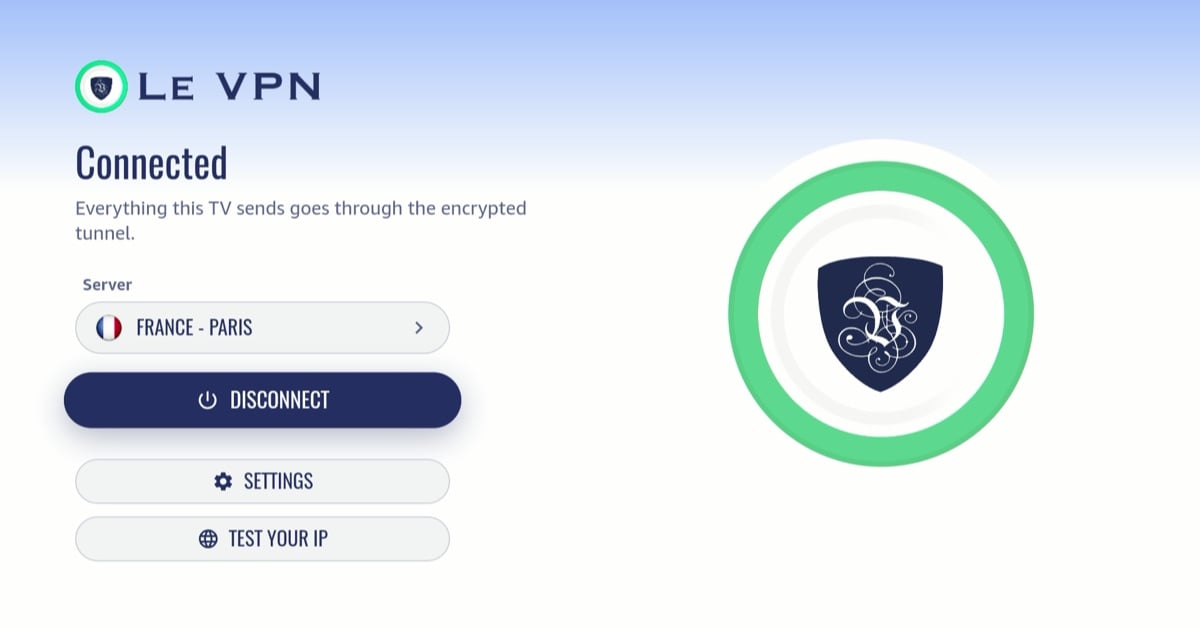
If you have used our Apple TV app, this screen will look familiar: the Vega app follows the same design, built for a remote and a living room instead of a mouse and a desk. The main screen holds a server row, a Connect button, Settings and Test your IP, and the D-pad walks between them.
- One tunnel for the whole TV. Vega OS runs a single VPN tunnel for the entire device. Once connected, every app on the stick, from the streaming services to the Appstore itself, sends its traffic through the server you picked. There is nothing to configure per app.
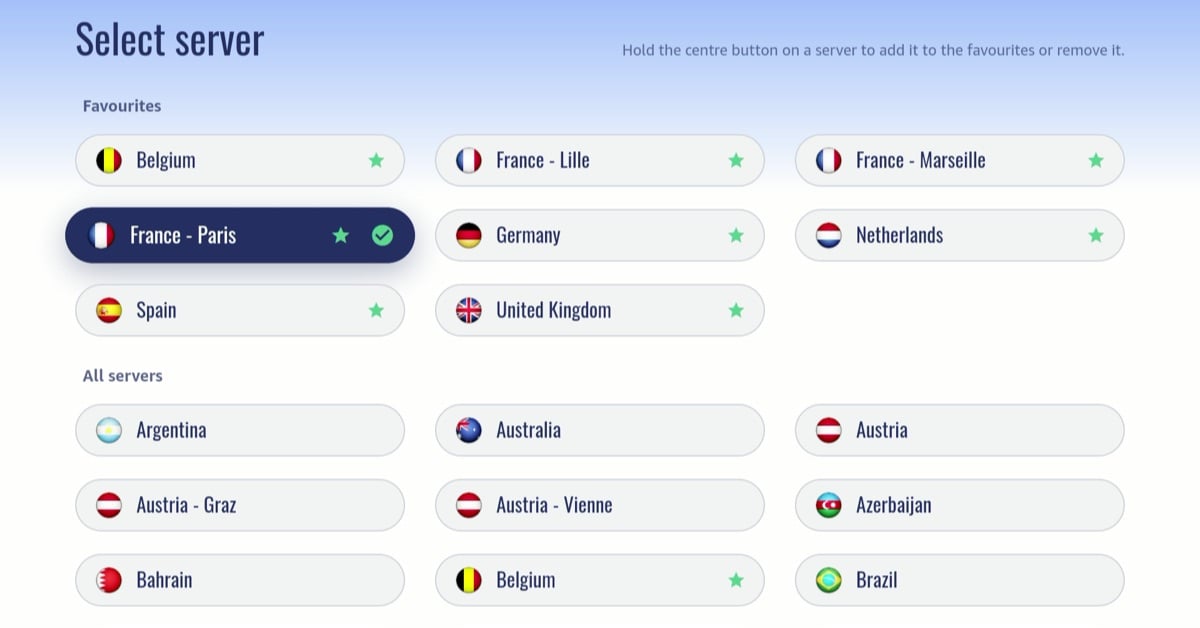
- Servers in 100+ locations. The server list is a grid of countries and cities with flags. Hold the centre button on any server to pin it to the Favourites section at the top; on a fresh install the app starts you off with a few suggested servers for your region.
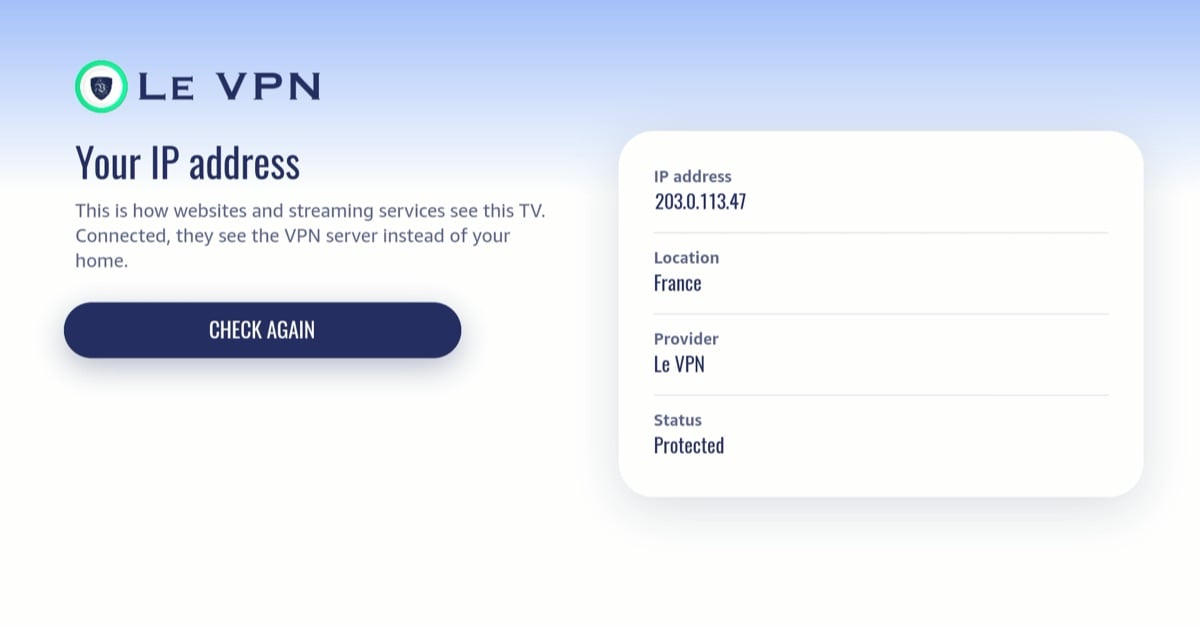
- Test your IP. A streaming stick has no web browser, so the check lives in the app: the IP address the TV presents to the internet, its location, the provider, and whether Le VPN sees you as protected.
- Threat Protection. When it is on, the tunnel resolves names through a filtering DNS resolver that refuses known malicious domains, for every app on the TV at once. Off by default.
- Bypass VPN for local networks. Keeps devices on your home network reachable while the VPN is up, so casting and printers do not vanish when you connect. Also off by default.
- Five Cryptographic IDs. Each account carries five numbered sets of WireGuard keys. Give the TV its own number in Settings so it never presents the same key as your phone.
- 15 languages. The app follows the language of the Fire TV: English, Arabic, Chinese, Czech, French, German, Italian, Japanese, Persian, Polish, Portuguese, Russian, Spanish, Turkish and Ukrainian.
The protocol underneath is WireGuard, the same fast tunnel our apps use everywhere, and on the Vega sticks it comes with no protocol menu to think about: pick a server, press Connect, and the status line walks from Connecting to Connected. The app signs in with the same credentials as every other Le VPN app, and the TV counts as one of the 10 simultaneous connections every plan includes.
Which Fire TV devices get which Le VPN app?
One Amazon listing now carries two different apps, and the Appstore gives each Fire TV the one it can run. That keeps the instructions short, search for Le VPN on the TV you own, but it is worth knowing what lands where.
| Device | System | Le VPN app it gets | Protocols |
|---|---|---|---|
| Fire TV Stick 4K Select (2025) | Vega OS | Le VPN app for Vega OS | WireGuard |
| Fire TV Stick HD, 2nd generation (2026) | Vega OS | Le VPN app for Vega OS | WireGuard |
| Every other Fire TV Stick, Fire TV Cube and TV with Fire TV built in, on Fire OS 7 or later | Fire OS | Fire OS build of the Le VPN Android app | WireGuard, WireGuard Stealth, WireGuard Ultra Stealth, OpenVPN |
| Fire TV models on Fire OS 6 and older | Fire OS | None | Use a VPN router |
The Fire OS build is the one to reach for on networks that fight VPNs: it carries WireGuard Ultra Stealth, the Stealth variant that disguises the tunnel as ordinary traffic for hotel, campus and country networks that block or throttle VPN connections. The Vega app starts with plain WireGuard and no protocol setting, so if your network blocks WireGuard itself, a Fire OS or Android TV device is the right tool for now.
How do I install Le VPN on a Vega OS Fire TV Stick?
- Open the Appstore on the Fire TV and search for Le VPN. The listing is the same one Fire OS devices use; a Vega stick receives the Vega app automatically. If the app does not appear, check Settings, My Fire TV, About, Check for Updates: the stick needs Vega OS 1.2 or later.
- Open the app and sign in with your Le VPN credentials, the VPN username and password from your activation email or your client area email and password. There is no way to create an account on the TV, so new customers subscribe on le-vpn.com first.
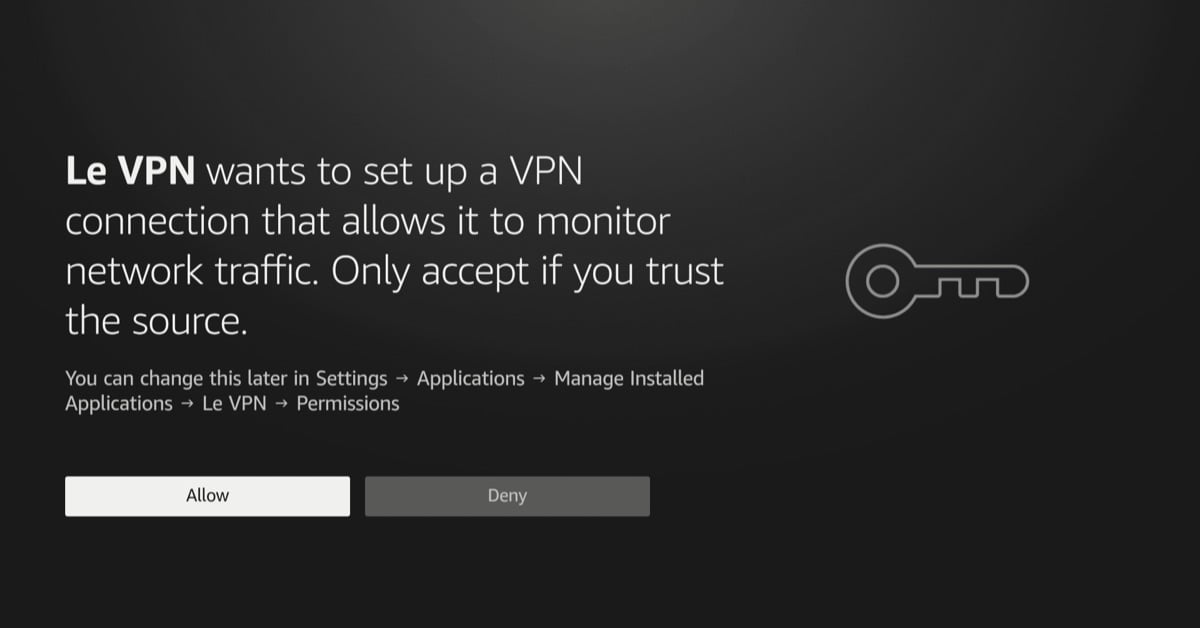
- Pick a server and press Connect. The first time, Vega OS asks for permission to set up a VPN connection. Select Allow; the question appears once.
- Open Test your IP and confirm the address and location have changed.
Two notes from the platform itself. Vega runs one VPN at a time, so connecting Le VPN ends another VPN app’s tunnel without a warning, and another app holding the tunnel can stop Le VPN from connecting. And the system carries IPv4 only through the tunnel, which for a streaming stick changes nothing in practice.
Why put a VPN on a streaming stick at all?
Because the stick is where the watching happens. Amazon said in late 2024 that well over 250 million Fire TV devices had been sold worldwide, which makes the Fire TV line one of the most common ways a household reaches the internet on its biggest screen. Three things change once that screen sits behind a VPN.
- Your own subscriptions travel with you. A Fire TV Stick in a holiday rental abroad can connect to a server back home, so the streaming services you already pay for see the country they expect. The subscription is still required; the VPN only changes where you appear to be watching from. Our streaming guide covers which services this works for.
- The local network learns less. A TV on shared or rental Wi-Fi advertises what it watches to whoever runs the network. Behind the tunnel, the network sees one encrypted stream to one server.
- Threat Protection for every app at once. TV apps and their ad networks resolve domains constantly. With Threat Protection on, requests to known malicious domains are refused at the DNS step, with nothing to install per app.
As on every Le VPN platform, the service keeps connection logs, not activity logs.
What the Vega app does not do yet
This is a first release on a platform that is itself a year old, and we would rather you know its edges before you install. There is one protocol, WireGuard, and no protocol setting; Stealth stays a Fire OS and Android advantage for now. There is no way to buy a subscription or create an account on the TV. The app follows a light theme only. Settings lock while the tunnel is up, so changing the Cryptographic ID or the bypass switch means disconnecting first. Picking a server is the exception: choose one while connected and the app moves the live tunnel to it straight away.
The app will not stop here: we are working on bringing more of what the Le VPN apps do on other platforms to the Vega sticks, and updates arrive through the Appstore on their own. If something misbehaves on your stick in the meantime, the details that help support are the device model, the Vega OS version and what Test your IP showed. The Fire TV installation guide walks through the setup step by step, and the 30-day money-back guarantee on a first purchase applies as usual.
If one of the new sticks is plugged into your TV, the app is already waiting in the Appstore. Press Connect once, and everything the TV sends leaves through the tunnel.
About the author
Le VPN Apps & Product
The Le VPN Product Team builds the Le VPN apps for iPhone, iPad, Mac, Windows, Android and Apple TV. They write here when something ships: a new app, a new platform, a new feature, and now and then a note on why a thing took longer than expected. Product posts are checked against the shipping build and the app's own release notes before they are published.
Articles by Le VPN Product Team →