
Le VPN comes to Linux: a native app for Ubuntu, Debian, Mint and Fedora
Linux users have been asking us for this one for years, and here it is: the first Le VPN app for Linux is out. Not a command-line tool, not a bundle of configuration files, but the full desktop app, with a window, a tray icon, server search, favourites, and the same two protocols our Windows and Mac apps run. It installs on Ubuntu, Debian, Linux Mint and Fedora, with Arch next, and it arrives the way Linux software should: from a signed repository, through your package manager.
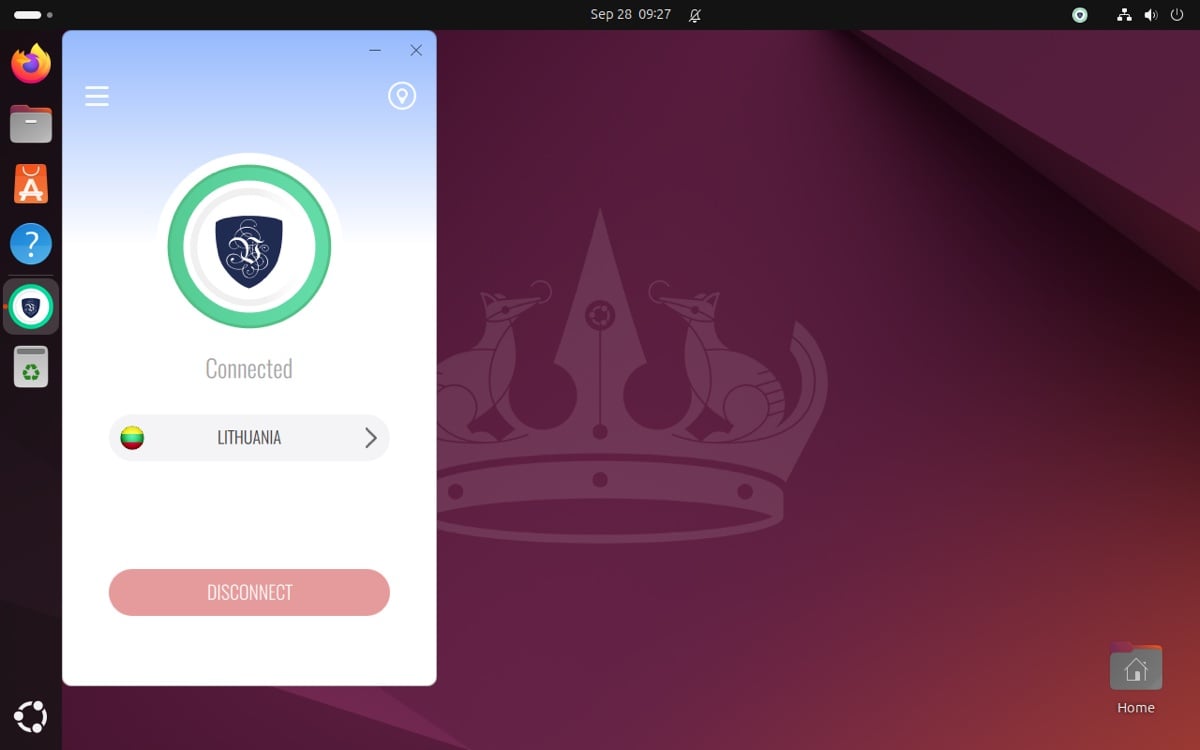
That last part is the point we are proudest of, and the one this post spends the most time on. But first, the app itself.
What is in the Le VPN app for Linux?
Open your application menu, start Le VPN, sign in with the account you already have, and you are looking at the same app our Windows users know: one screen, one server, one Connect button, with everything else a click away.
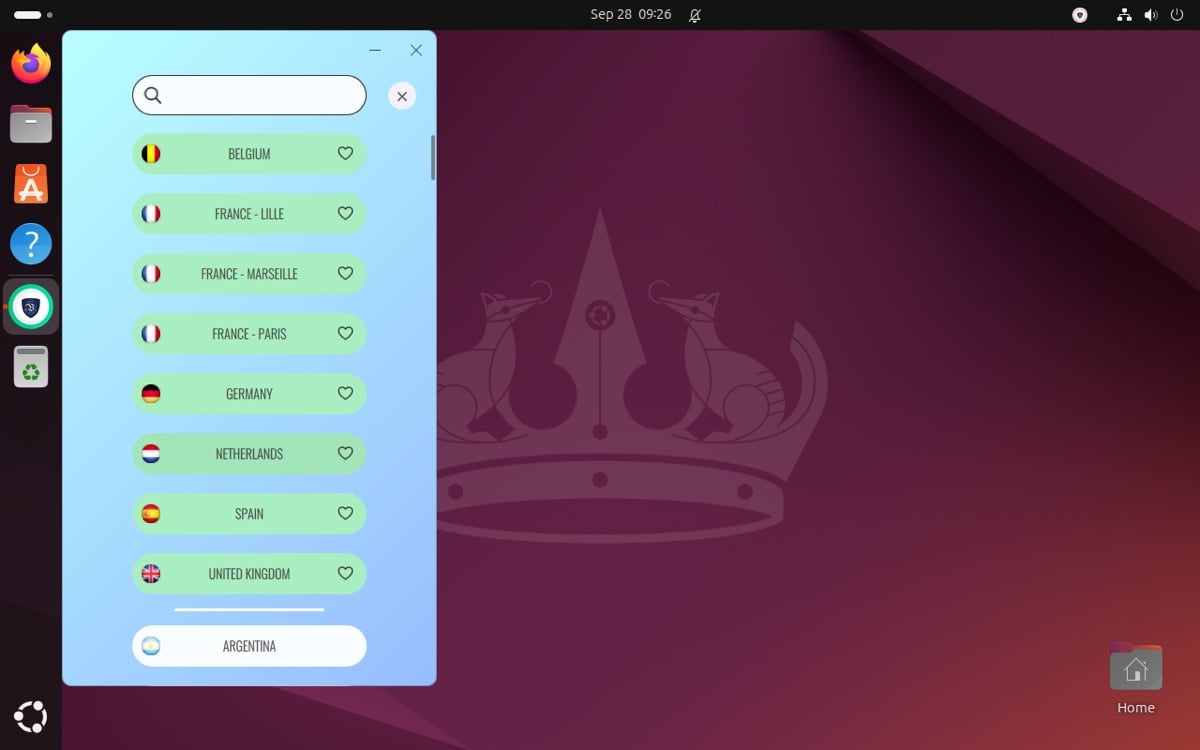
- Servers in 100+ locations. The server list opens from the row under the shield, with search and a favourites section. Pick one, press Connect, done.
- WireGuard and WireGuard Stealth. Two protocols, nothing else. WireGuard Stealth is on by default: the same tunnel, disguised so that networks which detect and block VPN traffic let it through. Prefer plain WireGuard? One switch turns Stealth off.
- Leak protection built into the connection. While you are connected, a firewall keeps every packet and every DNS query inside the tunnel, including the moment you switch from one server to another. Traffic goes through the tunnel or it does not go at all. One honest caveat, because Linux users read the fine print: the protection lives in the Le VPN service, so if that service itself is stopped or crashes, the tunnel and the firewall go down with it.
- Block Online Threats and Ad Blocker. DNS-level filtering of malicious domains, advertising networks and their trackers, for every application on the machine at once, no browser extension involved.
- Allow Local Connections. Your printer, your file shares and the rest of your home network stay reachable while everything bound for the internet goes through the tunnel.
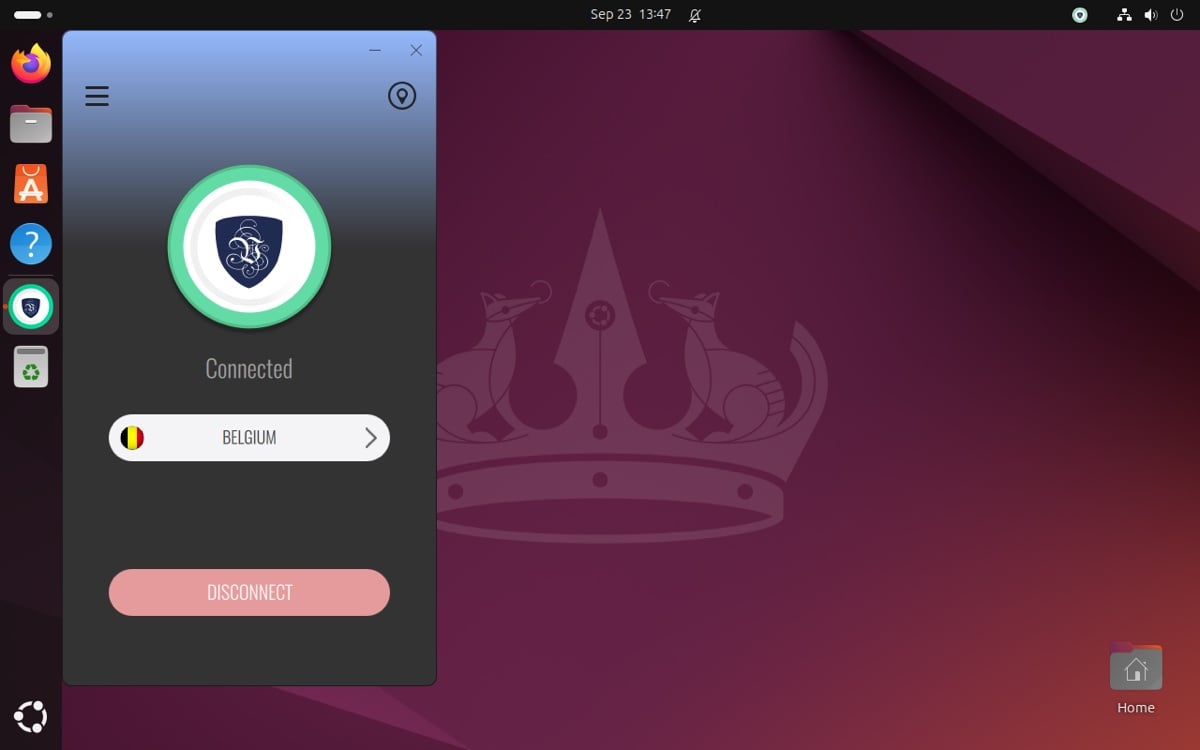
- The desktop details. A tray icon that connects, disconnects and reopens the window. Start with the computer, start minimised, Auto Connect. Light and dark themes that follow the desktop, on GNOME, KDE Plasma and Cinnamon, under Wayland and X11 alike.
Under the hood it behaves like software that respects its host. The tunnel is one network interface, levpn0. The firewall is one table, inet levpn. DNS is the tunnel’s resolvers while connected. All three appear when you connect and disappear when you disconnect, and a udev rule keeps NetworkManager from fighting the app over the interface. The background work is done by a systemd service, because that is what a daemon on Linux is supposed to be.
Which Linux distributions does it run on?
The app supports Ubuntu 22.04 and later, Debian 12 and 13, Linux Mint 22 and Fedora, on 64-bit PCs (x86_64); an Arch Linux package is coming to the AUR. Distributions built on these, such as Kubuntu, Pop!_OS, Zorin and elementary, take the same package. There is no ARM build yet, so a Raspberry Pi still needs the manual routes covered at the end of this post.
The protocol side of the story is a home game. WireGuard, the protocol underneath both of the app’s connection modes, has shipped inside the Linux kernel itself since version 5.6, released on 30 March 2020, with its author noting that kernels from then on “will have WireGuard built-in by default”. Its design goal, a protocol small enough to be “comprehensively reviewable by single individuals”, is exactly the property a Linux user wants in the code that carries all their traffic.
How do I install it?
On Ubuntu, Debian and Mint, three commands in a terminal:
sudo wget -O /etc/apt/sources.list.d/levpn.sources https://www.le-vpn.com/app/linux/levpn.sources
sudo apt update
sudo apt install levpn
The first adds the Le VPN repository and its signing key, the second reads it, the third installs the app and starts its service. Fedora does it in two commands with dnf, and for Arch our levpn-bin package is coming to the AUR; the Linux download page lists the exact commands for each distribution, along with one-off .deb and .rpm downloads for anyone who prefers a package to a repository.
Then open the app from the menu, sign in, pick a server and press Connect. Stealth is already on, so it works on networks where a plain VPN protocol would be blocked.
Why is there no update button?
Here is the design decision we expect Linux users to appreciate most: the app has no updater inside it, on purpose.
On Windows and on the Mac, our apps update themselves, and on those platforms that is the right answer. On Linux it would be the wrong one. Your distribution already has a better update mechanism than anything an application vendor can bundle: the package manager, with signatures checked on every package, every time. So that is the one we use. On Linux, the package manager is the VPN’s updater: Le VPN installs from a signed repository and updates with the rest of your system.
If you installed from the repository, there is nothing to remember. The newest Le VPN arrives with your normal system updates, next to everything else, verified against our signing key, whose fingerprint we publish: F8BA 9591 81E4 0362 EB1B DA0F 622E C242 4E9F 3877. If you installed a one-off package instead, signed SHA256 checksums are published alongside the files, and the app simply waits until you install a newer package over it.
The same thinking runs through the rest of the install. The package sets up a systemd service, a polkit rule so the person at the keyboard can connect without typing a password, and a menu entry. Remove the package and it all leaves cleanly, disconnecting first if you were connected. No curl-pipe-to-shell, no self-modifying installer in your home directory, no daemon of unknown provenance. Your package manager can tell you every file we put on your disk.
Why a Linux desktop app now?
Because the Linux desktop is having its moment, and we did the homework on how real that moment is. In our fact-check of the “Linux is exploding in Europe” story, we separated bot-inflated spikes from the sturdier trend underneath: StatCounter puts Linux at 4.54% of desktops worldwide in September 2026, a solid plateau that held even after the bot-inflated summer spike reverted.
The stronger driver is the one sitting in millions of homes: PCs that run Windows 10 and cannot run Windows 11. Microsoft’s consumer security updates for Windows 10 now run to October 12, 2027, and as we laid out in our guide to the Windows 10 endgame, a Linux distribution is the exit that keeps an ineligible PC both safe and free. People are taking it: Zorin OS 18 logged 2 million downloads in under three months, more than three-quarters of them from Windows machines.
We told those readers that Le VPN would follow them to any operating system they chose. This app is that promise kept. Someone whose first Linux week starts with a Mint USB stick should not need to learn tunnel configuration syntax to get back the VPN they had on Windows; they should find the same app, with the same button.
What if my system is not on the list?
The app covers the mainstream of the Linux desktop, but Linux is bigger than any list, so the older routes remain supported and documented.
| Native app | OpenVPN, manual | WireGuard configuration files | |
|---|---|---|---|
| Works on | Ubuntu 22.04+, Debian 12/13, Mint 22, Fedora and derivatives, x86_64 (Arch coming) | Practically any Linux | Any system with a WireGuard client, ARM included |
| Protocols | WireGuard, WireGuard Stealth | OpenVPN | WireGuard |
| Interface | Desktop app plus tray icon | NetworkManager | wg-quick or a client of your choice |
| Updates | Through the package manager | Nothing to update | Nothing to update |
| Setup guide | Linux download page | OpenVPN on Ubuntu guide | Configuration files in your client area |
If the native app runs on your system, use it: it is the only route with Stealth, the built-in leak protection and the DNS filtering. The manual routes are there for everything else, from a headless server to a Pi in a drawer.
One account, every platform
The Linux app signs in with the Le VPN account you already have, and it counts as one of the 10 simultaneous connections every plan includes, next to your phone, your TV and your other computers. As on every Le VPN platform, the service keeps connection logs, not activity logs. New to Le VPN? The 30-day money-back guarantee covers the first month, which is more than enough time to put the app through its paces on your distribution of choice.
This launch completes a year in which Le VPN apps reached the Mac, rebuilt from scratch, the Apple TV, the Vision Pro and Amazon’s newest Fire TV Sticks. The Linux desktop was the one major platform still waiting, and we did not want its first Le VPN app to feel like an afterthought. It installs with three commands, updates with your system, and gets out of your way. That is the most Linux compliment we know how to pay.
About the author
Le VPN Apps & Product
The Le VPN Product Team builds the Le VPN apps for iPhone, iPad, Mac, Windows, Linux, Android, Apple TV, Apple Vision Pro and Fire TV. They write here when something ships: a new app, a new platform, a new feature, and now and then a note on why a thing took longer than expected. Product posts are checked against the shipping build and the app's own release notes before they are published.
Articles by Le VPN Product Team →