
L2TP Installation on Android
The Le VPN Android app doesn't include L2TP - it runs on the faster Wireguard, Stealth Wireguard, and OpenVPN protocols instead. If you specifically need L2TP (an older device, a restrictive network, or a router setup), this guide covers manual setup using Android's built-in VPN client.

Recommended: use the Le VPN app
For the best speed and security, use the current Le VPN app for Android with Wireguard or Stealth Wireguard - the fastest, most secure option, with no manual configuration required. OpenVPN is also built in as a solid alternative. Download the app, sign in with your VPN credentials, pick a server, and tap Connect.
L2TP is not built into the current Android app. We still fully support L2TP through Android's own VPN settings for people who need it - an older phone, a network or router that only allows L2TP, or a personal preference. The manual steps below will get you connected.
Manual L2TP Setup on Android
Need L2TP specifically? Configure it through Android's built-in VPN client using the steps below. Menu names vary slightly between Android versions and manufacturers, but the fields are the same.
1
Add a new VPN
Open Settings > Network & Internet > VPN (on older Android versions: Settings > Wireless & Networks > VPN), then tap Add VPN or the + icon.
2
Configure the connection
Choose L2TP/IPSec PSK as the VPN type. Give it a name (e.g. "Le VPN"), then enter the server address and pre-shared key from below.
3
Save and connect
Save the profile, tap it in the VPN list, then enter your VPN username and password. Check Save account information if you don't want to re-enter it, then tap Connect.
A note on L2TP secret vs. pre-shared key
Some Android versions show two separate fields: IPSec pre-shared key and IPSec identifier (or an "Enable L2TP secret" checkbox). Enter levpnsecret only in the IPSec pre-shared key field. Leave the IPSec identifier blank and leave any separate "L2TP secret" option unchecked/empty unless your device requires it.
Once connected, confirm it worked by checking your IP address - it should show the VPN server's location, not your own.
Server address and pre-shared key
L2TP doesn't use downloadable configuration files - you just need a server hostname and the shared key below.
Server address: use the hostname for the location you want, in the format country-code.zeropointer.net - for example uk.zeropointer.net for the UK or fr.zeropointer.net for France. See the full list of available server locations on our server status page.
IPSec pre-shared key: levpnsecret
Finding your VPN credentials
VPN connection credentials
Used to connect via Android's built-in VPN client or the Le VPN app. Sent to your email when you activated your account - not the same as your client area login. Forgot them? Log into the client area and use the menu to view or reset your VPN password.
Client area login
The email and password you use to sign into le-vpn.com/clients to manage your subscription and view server locations. Forgot it? Reset your client area password here.
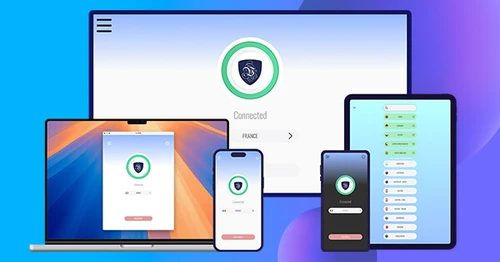
Download the latest Le VPN app for all devices




Also available on


30-Day Money-Back Guarantee
Try Le VPN risk-free! If you're not satisfied within the first 30 days, let us know and we'll refund your money.