How to Install VPN on Firestick
Every Fire TV on Fire OS 7 or later runs Le VPN, and so do the newest Firesticks on Vega OS. Both apps live in one Amazon listing, and the Appstore hands your device the one built for it. Two ways to install: pick whichever is easier.

Which Le VPN app your Fire TV gets
One Le VPN listing in the Amazon Appstore holds two apps, and each Fire TV receives the one it can run. Models on Fire OS get the Fire OS build of the Le VPN Android app; it needs Fire OS 7 or later. The Fire TV Stick 4K Select (2025) and the 2nd-generation Fire TV Stick HD (2026) run Vega OS and get the Le VPN app for Vega OS; it needs Vega OS 1.2 or later. The earlier Fire TV Stick HD, from 2024, is a Fire OS device. Fire TVs on Fire OS 6 or older cannot install the app at all; cover them with a VPN router. Not sure what your device runs? Check Settings > My Fire TV > About.
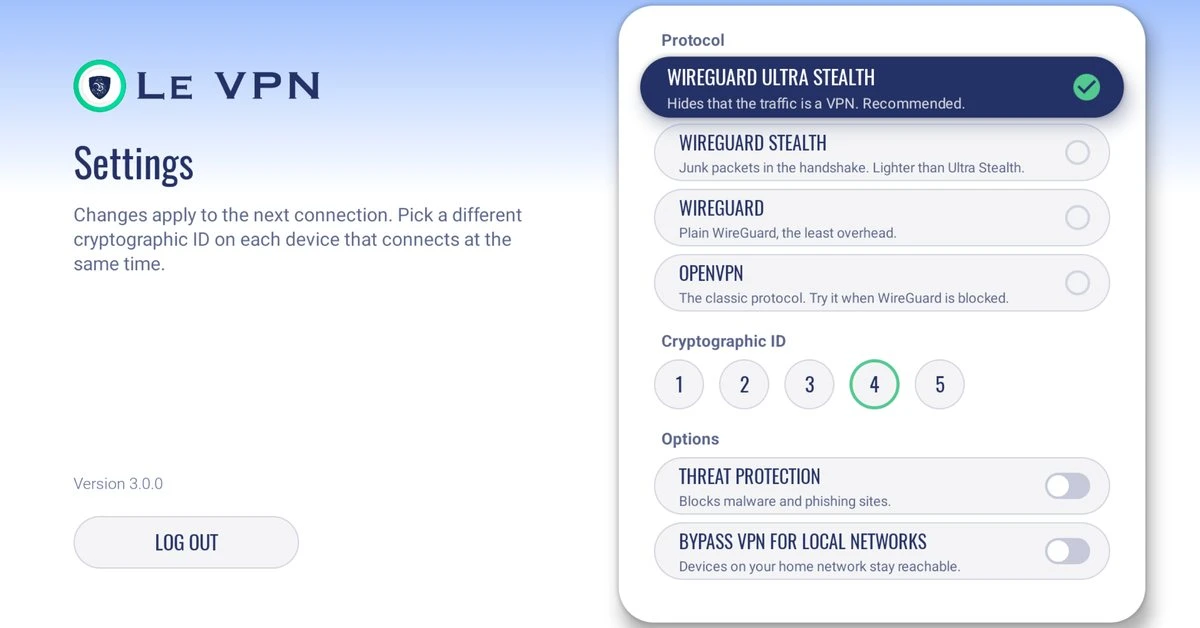
Protocols are where the two apps part ways. The Fire OS app opens on WireGuard Ultra Stealth, which hides the tunnel on networks that block VPNs, with WireGuard Stealth, WireGuard and OpenVPN behind it in Settings. The Vega OS app speaks WireGuard only and has no protocol setting, so on a network that blocks WireGuard it cannot connect; reach for a Fire OS or Android TV device there.
Install from the Amazon Appstore
Search for the app on the device itself - the Appstore hands each Fire TV the build it can run. Follow these steps with your remote.
1
Search for the app
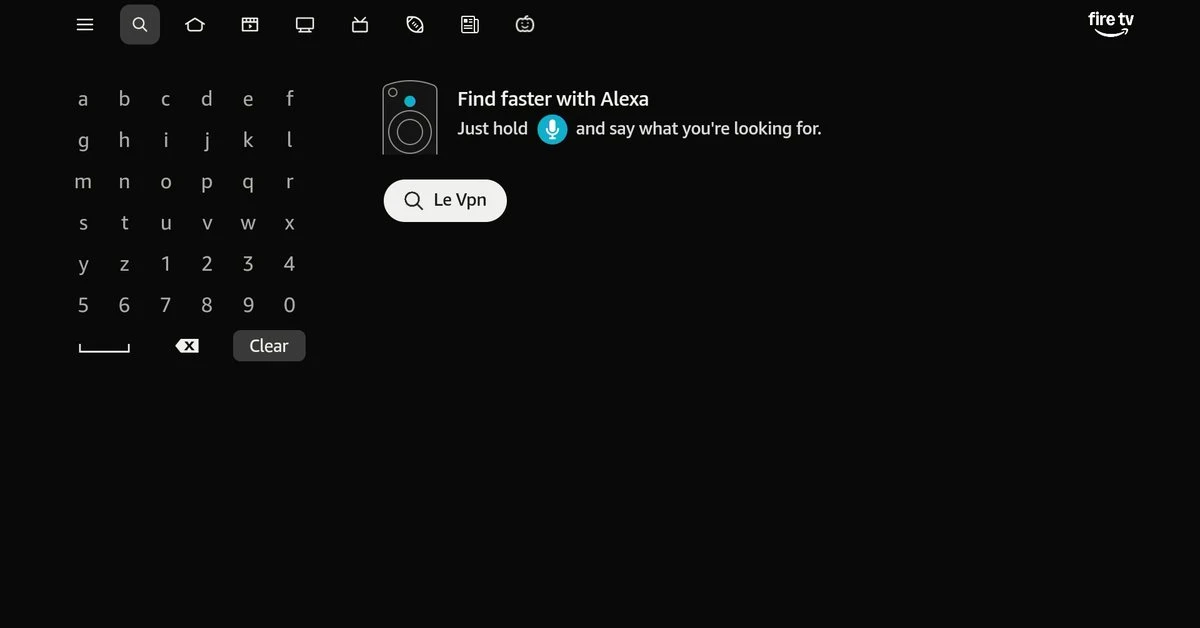
From the home screen, go up to the top menu and select the magnifying glass icon near its left end, type "Le VPN", and confirm the search.
2
Select it from the results
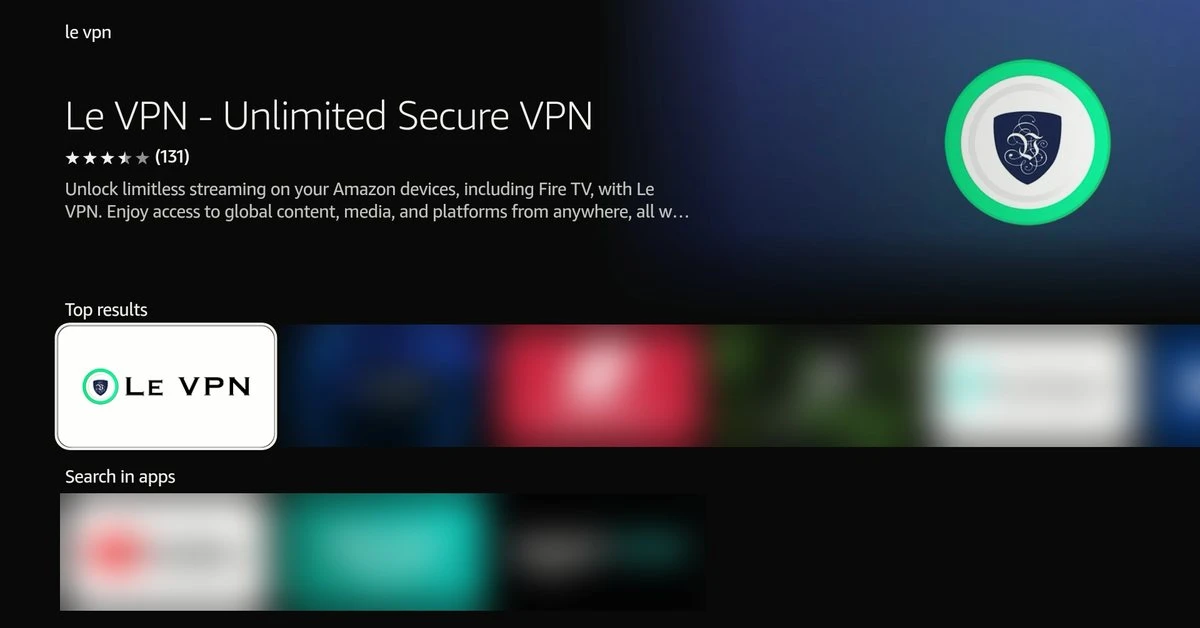
Find Le VPN in the search results and select it to open its download page. Not showing on a Vega OS stick? Run Settings > My Fire TV > About > Check for Updates, then search again.
3
Download
Select the Download button and wait for the install to finish.
4
Open the app
Once the download finishes, select Open to launch Le VPN.
6
Pick a server
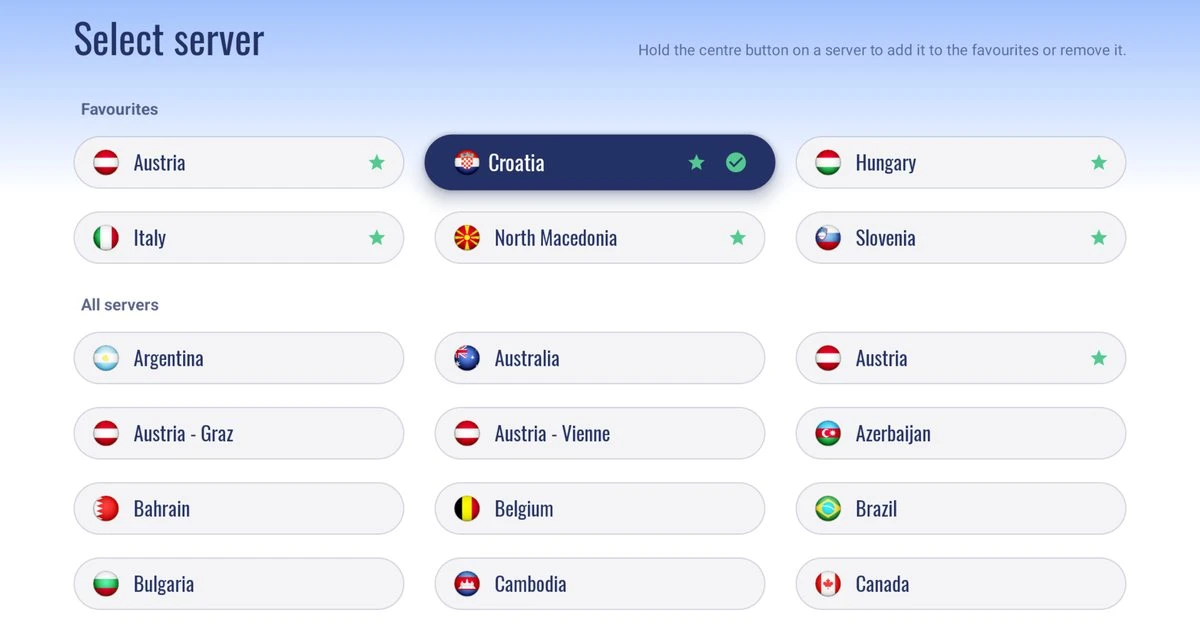
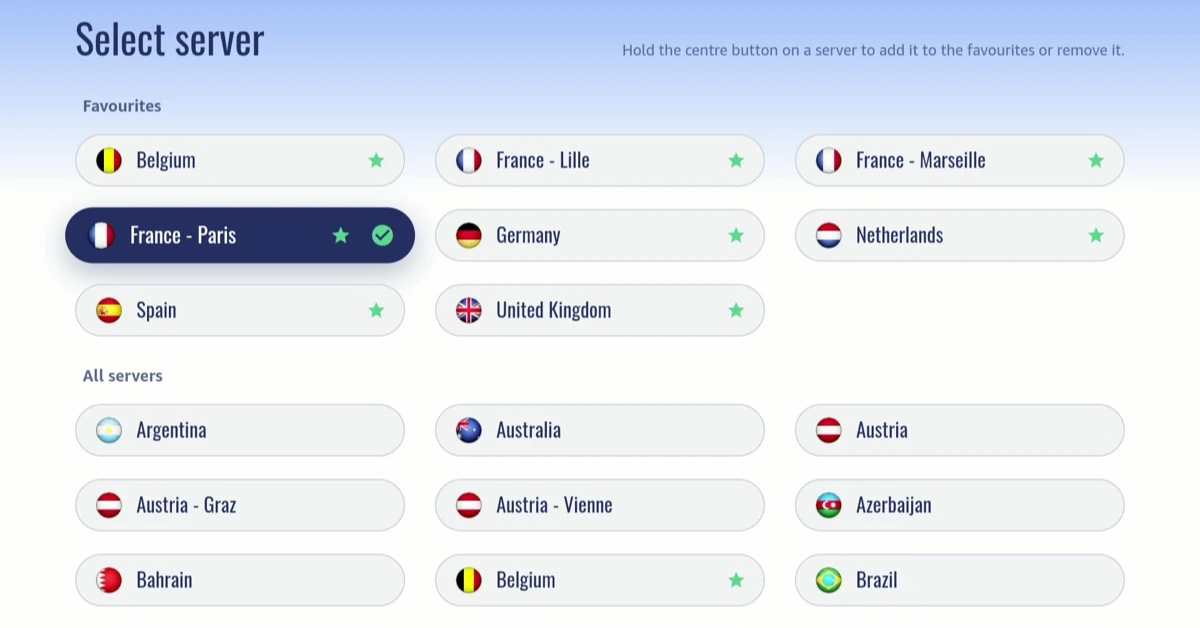
Once signed in, open the Server row on the main screen and pick a location: the app connects to it right away. CONNECT simply uses the server already on screen.
7
Allow the VPN
On the first connection, the Fire TV asks for permission to set up a VPN. Select OK on Fire OS (press Down once if the centre button does nothing) or Allow on Vega OS, and you're connected.
The steps as they look on a Fire TV Stick HD running Vega OS. On Fire OS the screens look a little different, but the steps are the same.
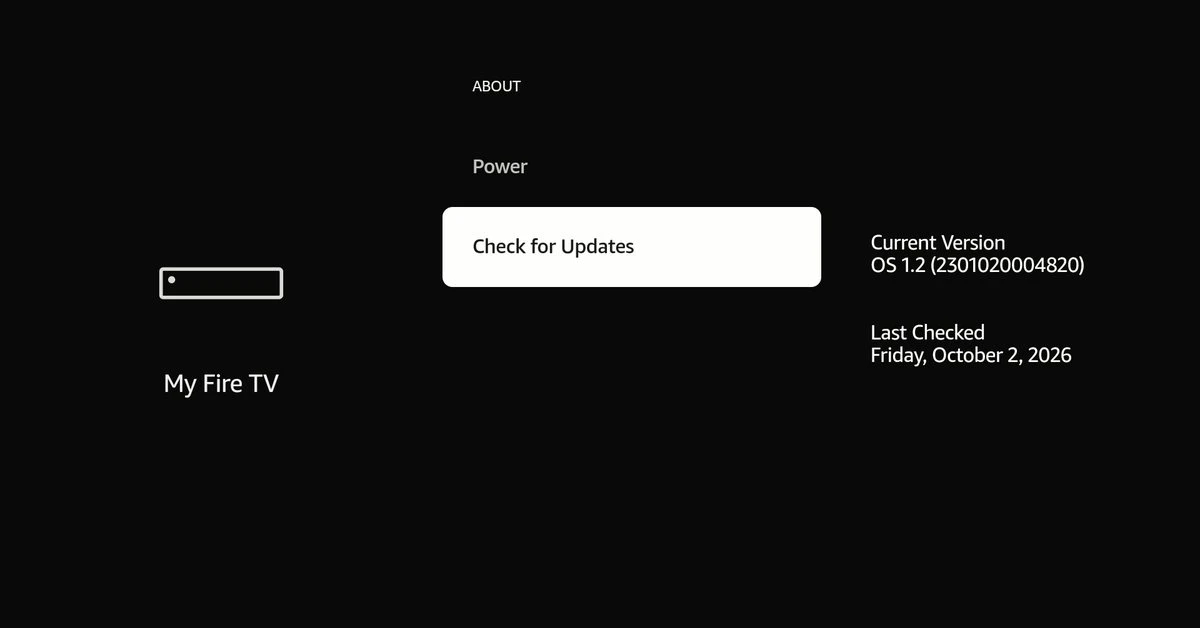
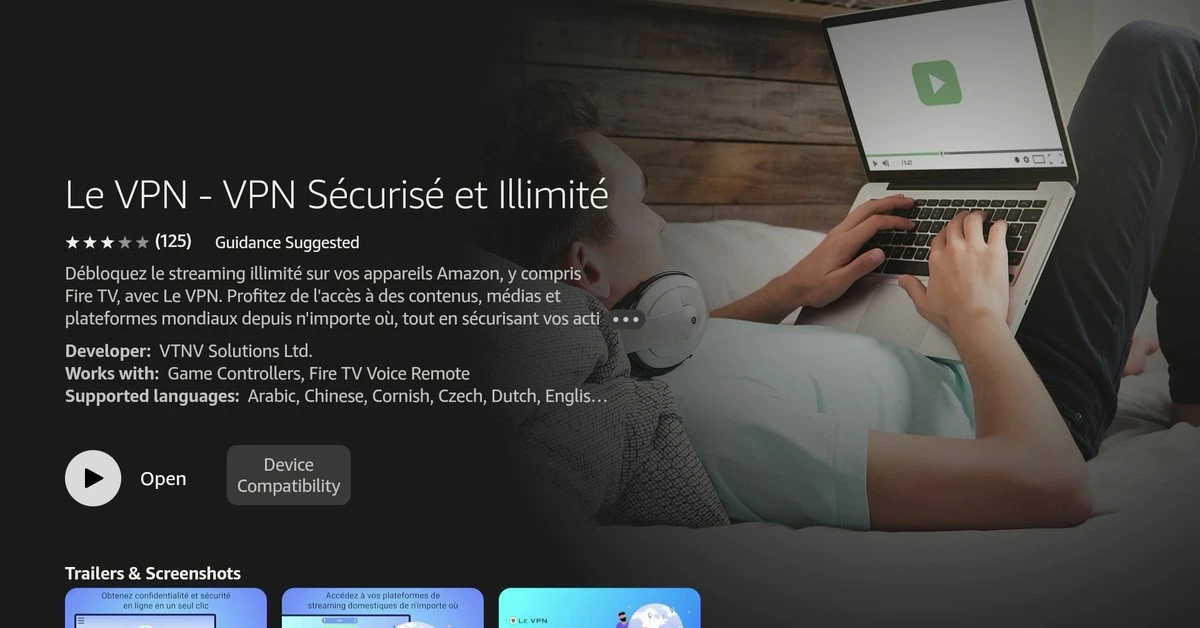
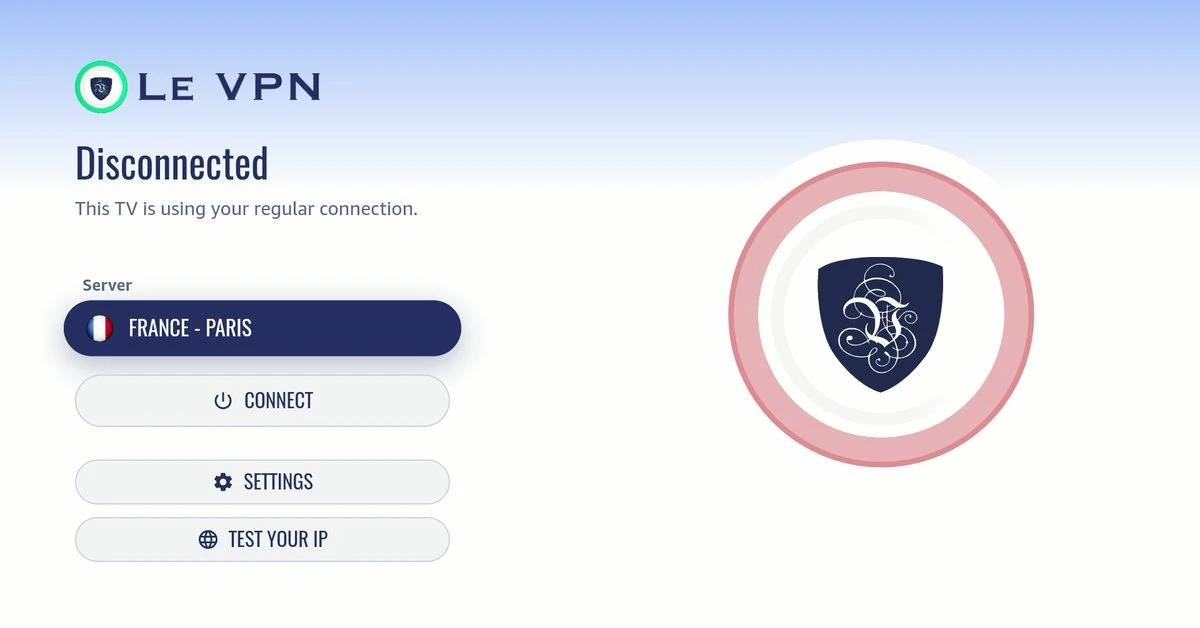
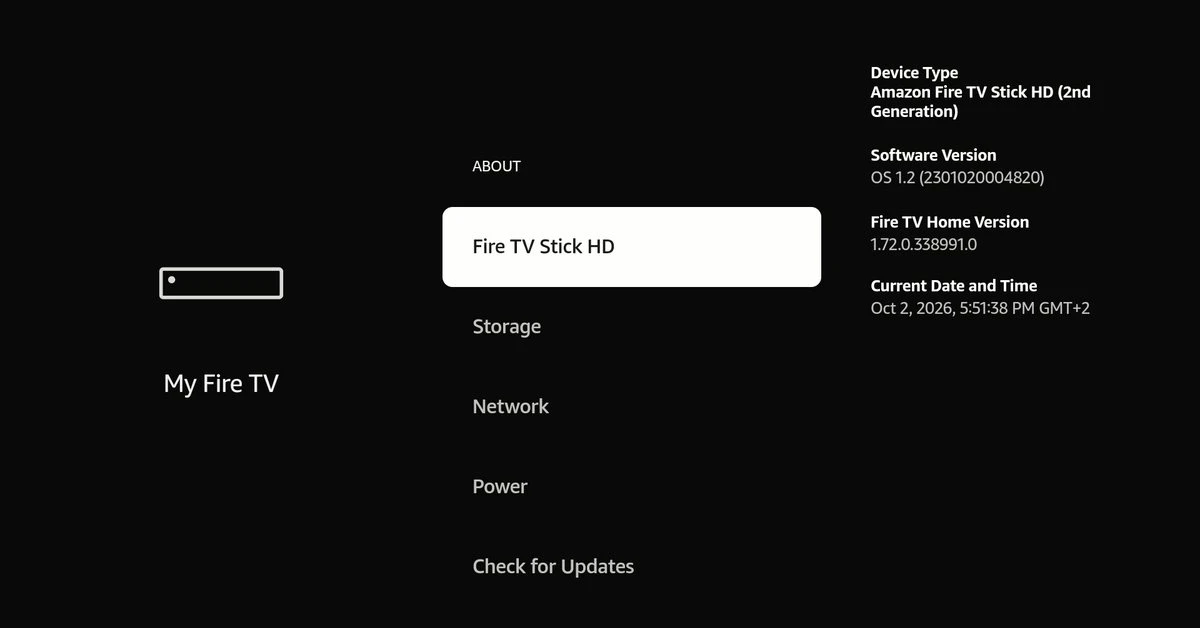
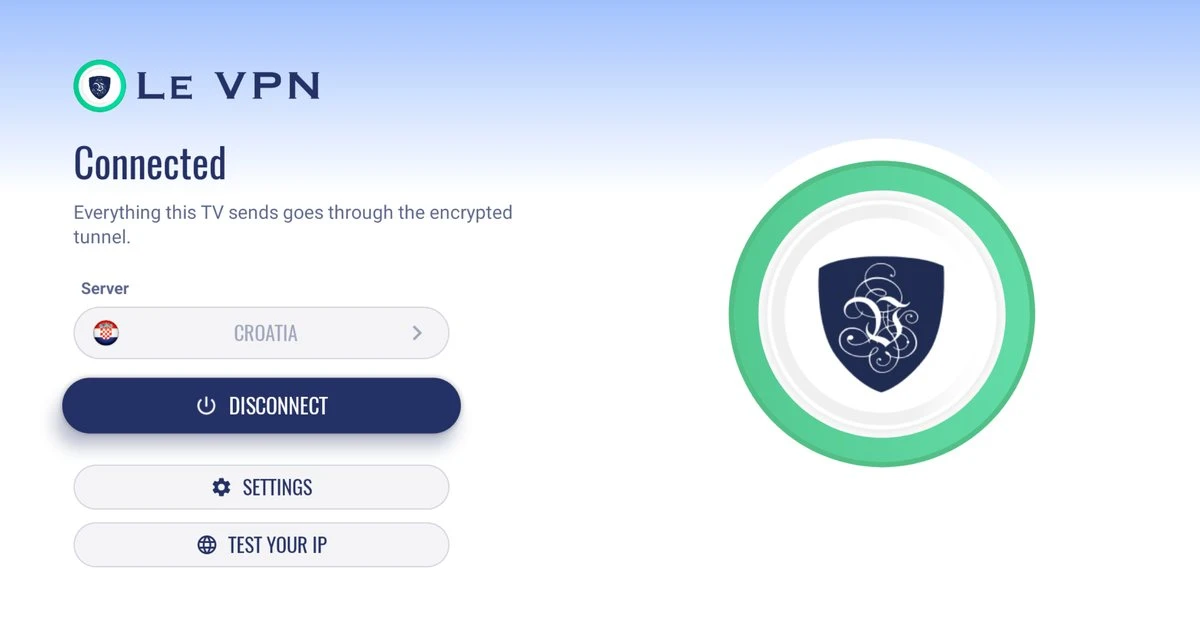
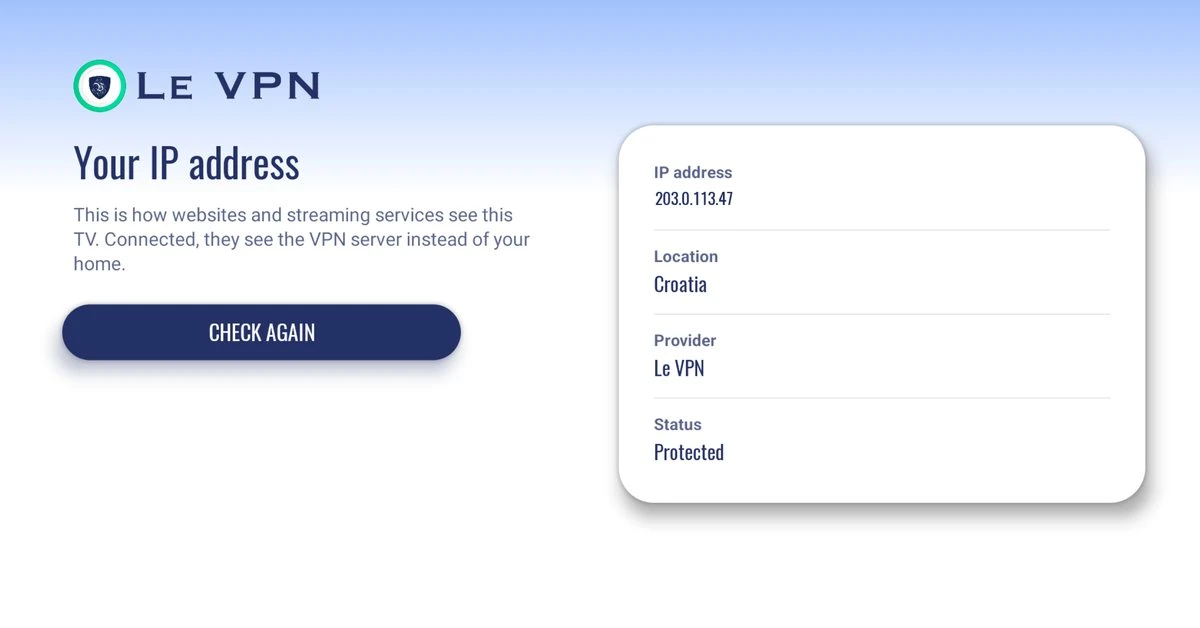
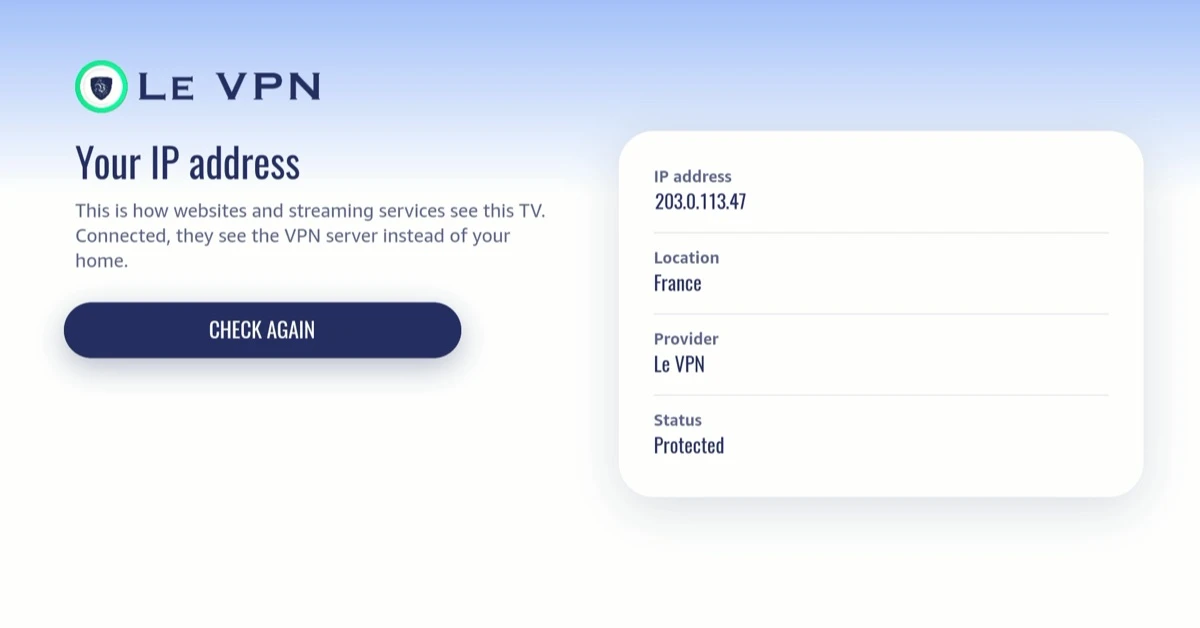
To confirm it worked, open TEST YOUR IP on the app's main screen: the location shown should be the VPN server's country rather than yours, and the status should read Protected.
Install from the .apk on le-vpn.com
Fire OS devices can also install Le VPN straight from the .apk we host ourselves - handy when the Appstore is not an option. Vega OS sticks cannot sideload apps; use the Appstore there.
1
Allow outside apps
Open Settings > My Fire TV > Developer Options and allow installing unknown apps. If Developer Options is hidden, open About and select the device name seven times to reveal it.
2
Install Downloader
Search the Appstore for the free Downloader app and install it.
3
Fetch the .apk
Open Downloader and enter le-vpn.com/app/android/latest - the address always serves the newest .apk. Download it only from our website.
4
Install and sign in
Confirm the install, open Le VPN and sign in with your VPN credentials. The .apk build updates itself: CHECK FOR UPDATES sits in its Settings.
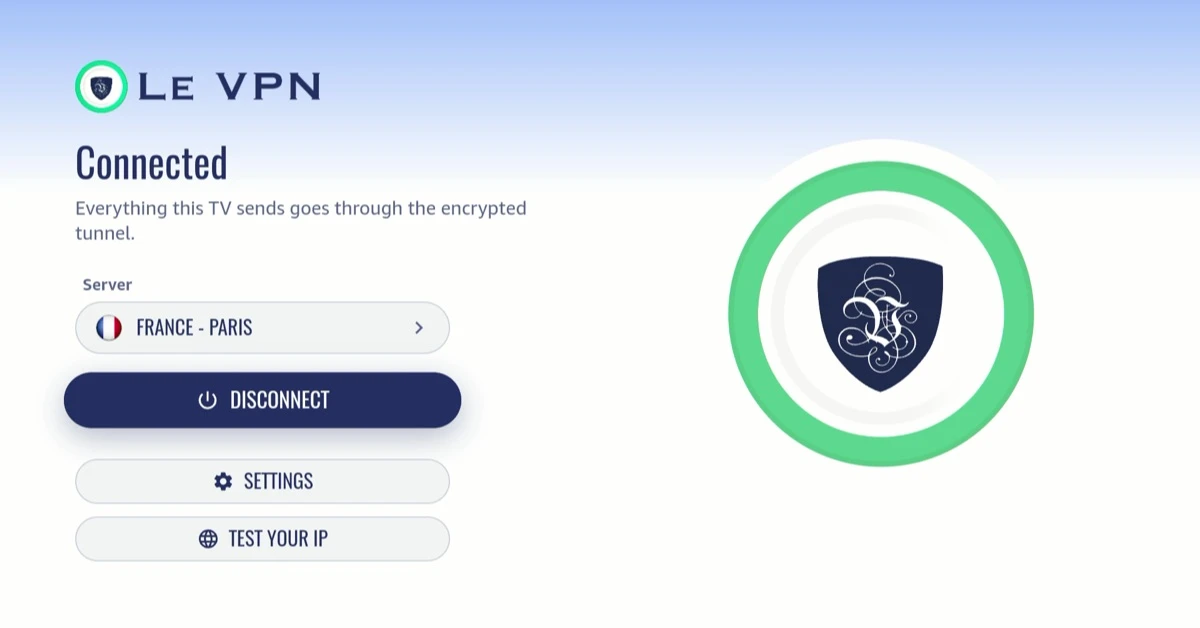
On Fire OS devices: what you'll see
Four screens from the Fire OS build of Le VPN, the app Fire OS devices get from the Appstore or the .apk. Everything works with the remote's D-pad.
On the Vega OS sticks: what you'll see
Three screens from the Le VPN app for Vega OS, photographed from a Fire TV Stick HD. Everything drives with the remote's D-pad.
Uninstalling Le VPN
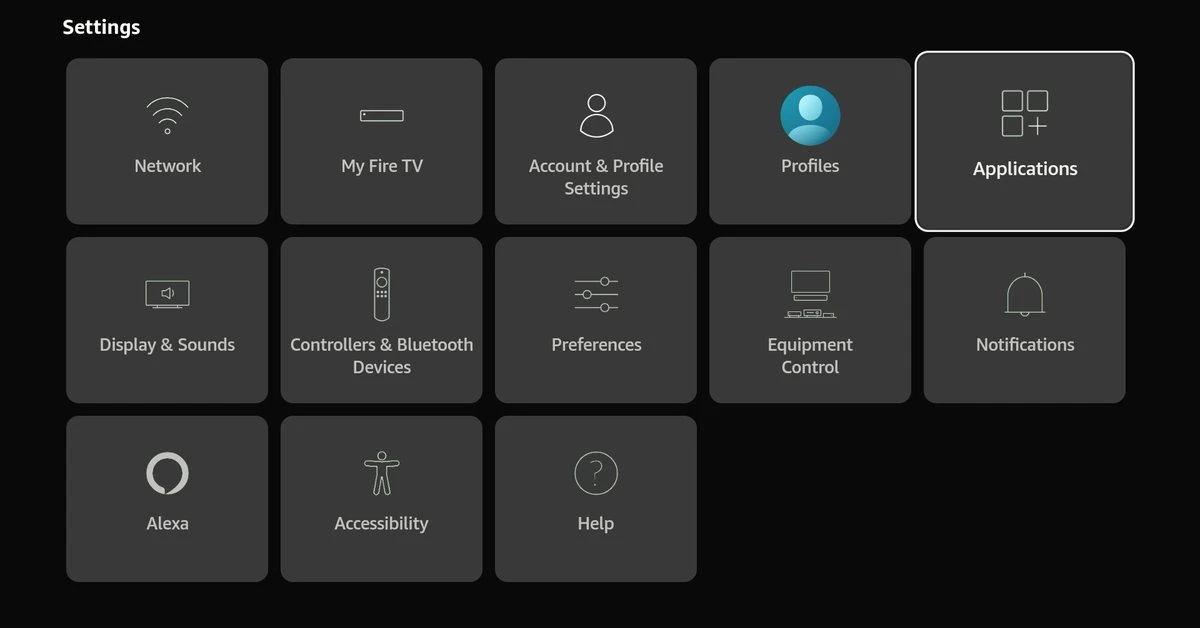
1
Open Applications settings
Go to Settings > Applications.
2
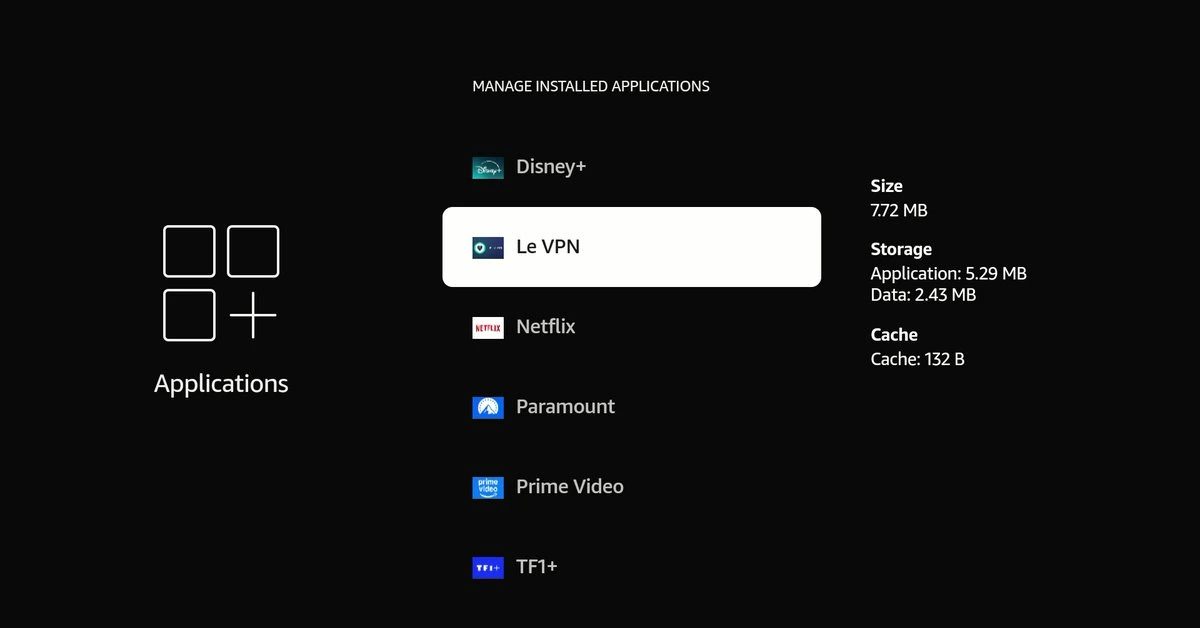
Manage installed applications
Select Manage Installed Applications and find Le VPN in the list.
3
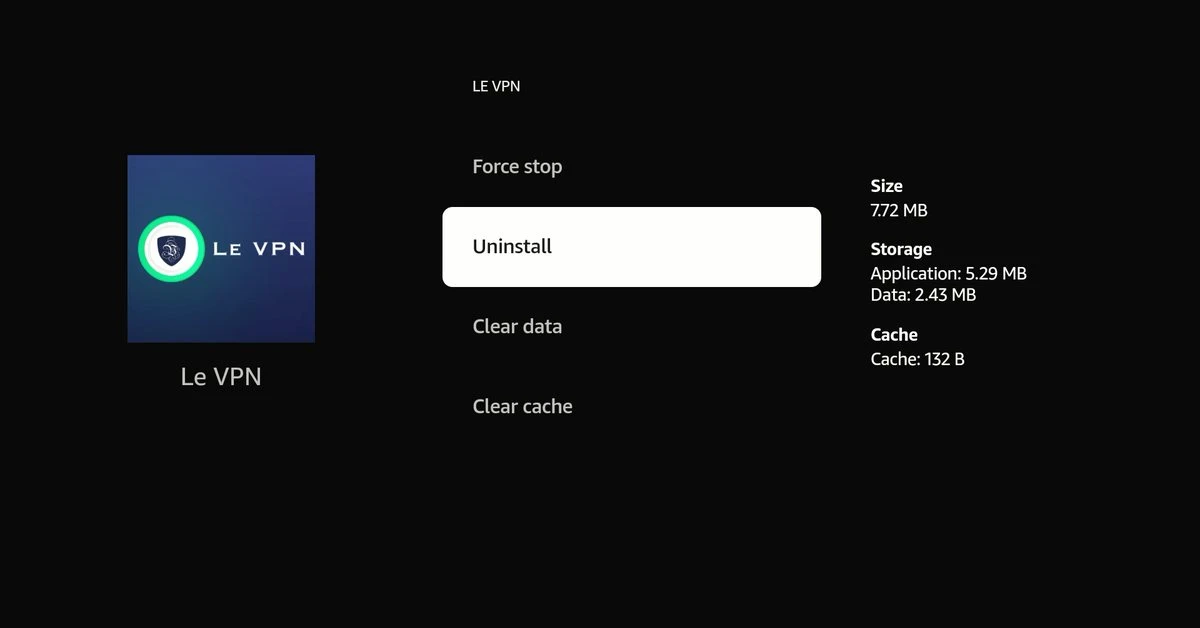
Uninstall
Select Uninstall and confirm.
The same three steps on a Fire TV Stick HD running Vega OS.
Quick recap
This guide installs Le VPN on Amazon Fire TV and Firestick. One Amazon App Store listing holds two apps: Fire OS models get the Fire OS build of the Le VPN Android app, while the Vega OS sticks get the Le VPN app for Vega OS. Install it from the Amazon Appstore on the device, or sideload our .apk from le-vpn.com on Fire OS models; signing in, connecting and uninstalling are covered too.
- Two install paths: search 'Le VPN' in the Amazon Appstore on the Firestick, or sideload the .apk from le-vpn.com (Fire OS only)
- Fire OS devices (Fire OS 7 or later) run the Android app; the Fire TV Stick 4K Select and the 2026 Fire TV Stick HD run Vega OS and get the Le VPN app for Vega OS (Vega OS 1.2 or later)
- Sign in with your Le VPN credentials and pick a server: the app connects right away, once you allow the VPN on the first run
- Protocols: WireGuard Ultra Stealth, WireGuard Stealth, WireGuard and OpenVPN on the Fire OS app; WireGuard only on the Vega OS app
- Uninstall from Settings > Applications > Manage Installed Applications
- One Le VPN account covers up to 10 devices at the same time across all your platforms
Finding your VPN credentials
VPN connection credentials
Used to log into the Le VPN app on your Fire TV or Firestick. Sent to your email when you activated your account - not the same as your client area login. Forgot them? Log into the client area and use the menu to view or reset your VPN password.
Client area login
The email and password you use to sign into le-vpn.com/clients to manage your subscription. Forgot it? Reset your client area password here.
Download the latest Le VPN app for all devices




Download Le VPN for Mac (App Store)
For Apple Silicon and Intel Macs. Learn more about our Le VPN for Mac


Also available on


30-Day Money-Back Guarantee
Try Le VPN risk-free! If you're not satisfied within the first 30 days, let us know and we'll refund your money.