PPTP Installation on DD-WRT Router
Set up Le VPN with PPTP directly on your DD-WRT router and every device on your network connects through the VPN automatically - no app or per-device setup needed.
Protect your whole household at once
A router-level VPN setup is a one-time configuration that covers every device connected to your network. PPTP is a manual-setup-only protocol on every platform, including routers - there's no app involved. We still support PPTP for users who need it, but OpenVPN is the more secure, actively recommended option if your router and network allow for it.
For devices you'd rather connect individually, the Le VPN app is available for Windows, macOS, Android, and iOS.
Manual PPTP Setup on DD-WRT
Configure the PPTP client built into DD-WRT's firmware. Exact menu names can vary slightly by DD-WRT version.
1
Open your router's admin panel
In a browser, go to your router's control panel (usually http://192.168.1.1). Under Setup > Basic Setup, set Static DNS 1/2/3 to 8.8.8.8, 8.8.4.4, and 208.67.222.222, and enable Use DNSMasq for DHCP/DNS. Save and apply.
2
Enable the PPTP client
Go to Services > VPN and enable Start PPTP Client.
3
Enter server and connection settings
Set Server IP/Name to your chosen server (e.g. fr.zeropointer.net for France), MPPE Encryption to mppe required, stateless, NAT to Enable, and enter your VPN username and password. Save and apply - the router may need a reboot.
Check Status > PPTP for a "Client: CONNECTED SUCCESS" message. Once connected, confirm from any device on your network by checking your IP address - it should show the VPN server's location.
Quick recap
This guide shows how to configure Le VPN with PPTP on a DD-WRT router, so every device on your network connects through the VPN automatically with no per-device app. PPTP is manual-setup-only and has known cryptographic weaknesses - OpenVPN is the more secure, recommended option for routers where your setup allows it.
- Platform and protocol: PPTP on a DD-WRT router, using the firmware's built-in PPTP client
- Steps: set static DNS in Basic Setup, enable Start PPTP Client under Services > VPN, then enter server and settings
- Use MPPE required, stateless encryption and your chosen server (e.g. fr.zeropointer.net)
- Enter your Le VPN username and password; check Status > PPTP for CONNECTED SUCCESS
- PPTP is less secure - prefer OpenVPN on your router; one Le VPN account covers up to 10 devices
Finding your VPN credentials
VPN connection credentials
Used to connect via PPTP on your router. Sent to your email when you activated your account - not the same as your client area login. Forgot them? Log into the client area and use the menu to view or reset your VPN password.
Client area login
The email and password you use to sign into le-vpn.com/clients to manage your subscription. Forgot it? Reset your client area password here.
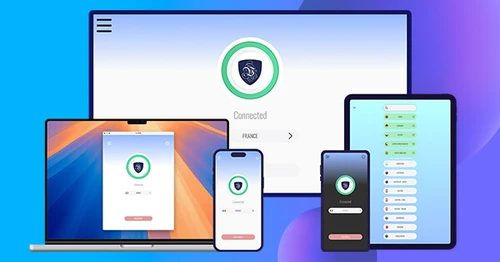
Download the latest Le VPN app for all devices




Also available on


30-Day Money-Back Guarantee
Try Le VPN risk-free! If you're not satisfied within the first 30 days, let us know and we'll refund your money.