

OpenVPN Installation on Linux
Le VPN now has a native Linux app - the easiest way to connect on Ubuntu, Debian, Mint and Fedora (Arch coming soon). Prefer OpenVPN, or running a distribution the app doesn't cover? This guide walks through the manual setup with the standard OpenVPN client.

The native Le VPN app for Linux
Le VPN has a native Linux app for Ubuntu, Debian, Mint and Fedora (Arch coming soon) - installed from our signed repository or a .deb/.rpm package, with WireGuard and Stealth protocols, Threat Protection and leak-proof tunneling built in. For most Linux users it's the better choice, and setup takes a couple of minutes.
The manual OpenVPN setup below remains fully supported: use it on distributions the app doesn't cover, on 32-bit or ARM machines, or whenever you simply prefer OpenVPN.
Manual OpenVPN Setup on Linux
These steps use Network Manager's OpenVPN plugin, available on Ubuntu and most other distributions with a desktop environment.
1
Install the OpenVPN plugin
Open a terminal and run sudo apt install network-manager-openvpn-gnome (on Debian/Ubuntu-based systems), then restart Network Manager or simply reboot.
2
Add a new VPN connection
Open your Network Connections / Settings > Network panel, click Add, and choose OpenVPN as the connection type.
3
Enter your server and credentials
Set the Gateway to your chosen server address, Type to "Password" (or with your downloaded .ovpn config), and enter your VPN username and password.
Prefer the command line?
Advanced users can skip the GUI entirely: install OpenVPN with sudo apt install openvpn, then connect directly with sudo openvpn --config Le-VPN-France-53.ovpn using one of your downloaded configuration files. You'll be prompted for your VPN username and password unless they're embedded in the file.
Once connected, confirm it worked by checking your IP address - it should show the VPN server's location, not your own. If it still shows your real IP, disconnect and reconnect.
OpenVPN configuration files
Your Le VPN subscription includes ready-made OpenVPN configuration files for every server location, bundled by port so you can pick whichever works best on your network.
Download the ZIP for the port you want: UDP 53, TCP 80, or TCP 443. Each ZIP has one .ovpn file per server for that port (e.g. Le-VPN-France-53.ovpn). If one port is blocked on your network, just download a different port's ZIP. You can import a .ovpn file directly in Network Manager's Add VPN dialog instead of filling in fields manually.

Quick recap
This guide sets up Le VPN with OpenVPN on Linux (Ubuntu, Debian and most other distributions) through Network Manager's OpenVPN plugin or the OpenVPN command line, using your downloadable configuration files and VPN credentials. For most Linux users the native Le VPN app is the easier route - this manual setup covers everything else.
- Platform: Linux (Ubuntu/Debian and others), using the OpenVPN protocol; the native Le VPN Linux app is the easier alternative
- GUI method: install
network-manager-openvpn-gnome, then add an OpenVPN connection or import a.ovpnfile - CLI method: install
openvpn, then runsudo openvpn --config Le-VPN-France-53.ovpn - Config files come as per-port ZIPs (UDP 53, TCP 80, TCP 443) - switch ports if one is blocked
- Sign in with your Le VPN username and password; one account covers up to 10 devices
Finding your VPN credentials
VPN connection credentials
Used to connect via OpenVPN on Linux. Sent to your email when you activated your account - not the same as your client area login. Forgot them? Log into the client area and use the menu to view or reset your VPN password.
Client area login
The email and password you use to sign into le-vpn.com/clients to manage your subscription and download configuration files. Forgot it? Reset your client area password here.
Sale ends in 0 00:00:00
Save 50% with the 12-Month Plan
Halloween offer: 2 months free on the 12-month plan
14 months of Le VPN for $59.40, then $59.40 every 12 months.
New accounts only, on our website (not App Store or Google Play). Ends 2 Nov 2026 UTC.
30-day money-back guarantee
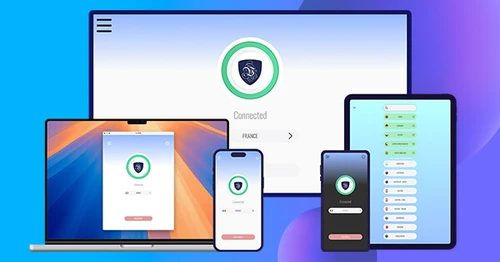
Download the latest Le VPN app for all devices




Download Le VPN for Mac (App Store)
For Apple Silicon and Intel Macs. Learn more about our Le VPN for Mac


Download Le VPN for Linux ( .deb)
For Ubuntu, Debian and Mint. Learn more about our Le VPN for Linux


Also available on routers:

ASUS
WireGuard · OpenVPN

GL.iNet
WireGuard · OpenVPN

TP-Link
WireGuard · OpenVPN

FRITZ!Box
WireGuard

Freebox
WireGuard · OpenVPN

Keenetic
WireGuard · OpenVPN

MikroTik
WireGuard · OpenVPN

UniFi
WireGuard · OpenVPN

Synology
OpenVPN

OpenWrt
WireGuard · OpenVPN

DD-WRT
WireGuard · OpenVPN

pfSense
WireGuard · OpenVPN

OPNsense
WireGuard · OpenVPN
30-Day Money-Back Guarantee
Try Le VPN risk-free! If you're not satisfied within the first 30 days, let us know and we'll refund your money.