
L2TP Installation on Windows Vista
Still on Windows Vista? You can connect via L2TP/IPSec using Windows' built-in VPN client with the manual steps below.

Recommended: use a current device where possible
Windows Vista is long past end-of-life and no longer receives security updates from Microsoft, so we recommend moving to a supported Windows version when you can - our current Windows app gives you Wireguard or Stealth Wireguard in one click, faster and more secure than L2TP.
If you're stuck on Vista for now (an older machine, a specific piece of hardware), the manual L2TP setup below still works and is fully supported.
Manual L2TP Setup on Windows Vista
Follow these steps to connect using Windows' built-in VPN client.
1
Create a new connection
Open Control Panel > Network and Internet > Network and Sharing Center, click Set up a new connection or network, choose Connect to a workplace, then Use my Internet connection (VPN).
2
Enter the server and enable the preshared key
Enter the server address as the internet address and give the connection a name. In Network and Sharing Center > Change adapter settings, open the connection's Properties > Security tab, set the VPN type to L2TP/IPsec, click Advanced settings, and enable the preshared key.
3
Connect
Click the network icon in the taskbar, select your new connection, click Connect, and enter your VPN username and password.
Once connected, confirm it worked by checking your IP address - it should show the VPN server's location, not your own. If it still shows your real IP, disconnect and reconnect.
Server address and preshared key
L2TP doesn't use configuration files - just a server address and a shared secret.
Use the hostname of the location you want to connect to, e.g. uk.zeropointer.net or fr.zeropointer.net (see the full server list), and set the preshared key to levpnsecret.
Quick recap
This guide sets up L2TP/IPSec on Windows Vista using the built-in VPN client. Vista is past end-of-life and no longer gets security updates, so moving to a supported Windows version with the Le VPN app (Wireguard or Stealth Wireguard) is recommended - but the manual L2TP setup below still works and is fully supported.
- Platform: Windows Vista, using the L2TP/IPSec protocol via the built-in VPN client
- In Change adapter settings, open the connection's Properties > Security, set type to L2TP/IPsec, and enable the preshared key
levpnsecret - Use a server hostname like
uk.zeropointer.net; L2TP needs no downloadable config files - Vista is end-of-life - upgrade when you can and use Wireguard or Stealth Wireguard via the current Le VPN app
- One Le VPN account covers up to 10 devices at the same time
Finding your VPN credentials
VPN connection credentials
Used to connect via the built-in Windows VPN client or the Le VPN app. Sent to your email when you activated your account - not the same as your client area login. Forgot them? Log into the client area and use the menu to view or reset your VPN password.
Client area login
The email and password you use to sign into le-vpn.com/clients to manage your subscription. Forgot it? Reset your client area password here.
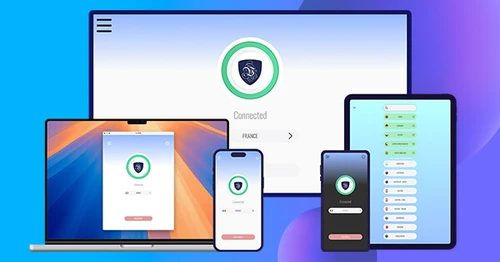
Download the latest Le VPN app for all devices




Also available on


30-Day Money-Back Guarantee
Try Le VPN risk-free! If you're not satisfied within the first 30 days, let us know and we'll refund your money.